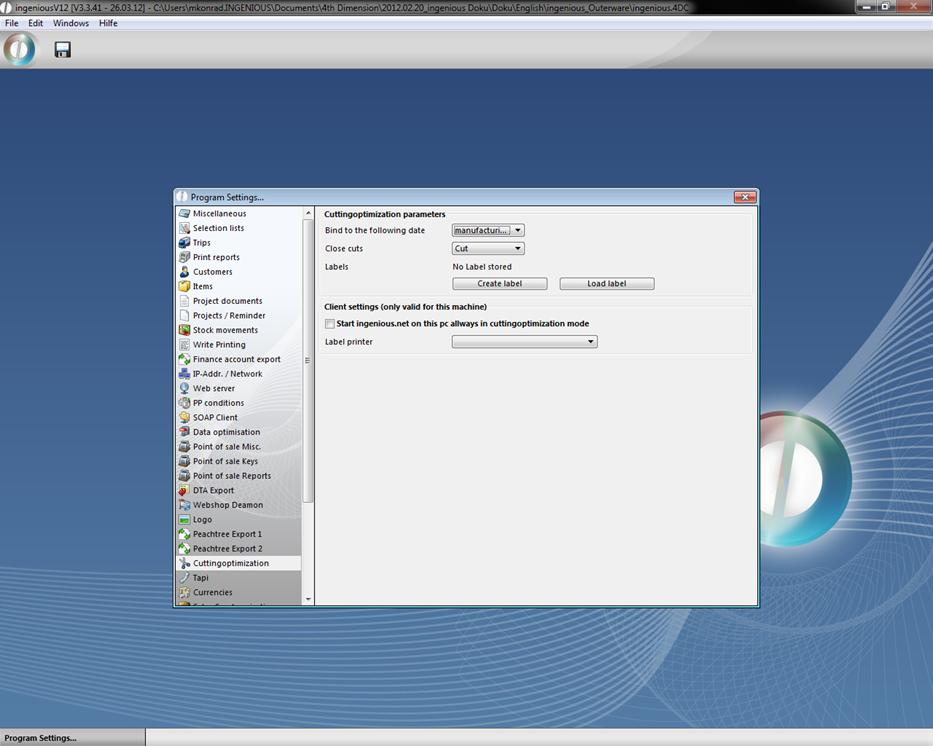
Here you find the settings for cutting optimization with a touch screen. This column will only be displayed when all the user rights regarding cut optimization are activated. In the field, “Link to the following date” you can establish which appointment- specific project should be listed (meaning appointments listed in the project detail view). When the option “Printed on” is selected, all appointments specified within a certain time period will be listed. In the area “Close layout” you can select options “Cut” and “Label” or “Cut and Label”. Here you specify the date when the article will no longer be displayed in the cutting optimization. With the “Create label” button, you can create your own label, and with the “Load label” button, you can load an already existing label. In addition, you have the possibility to program the printer to print labels. When you checkmark the field “Always start Ingenious.V12 on this computer in the cut optimization mode”, the cut optimization mode opens at the start of Ingenious.V12 in full Screen-/Touch screen mode. Otherwise, you can get to this mode when you press and hold the Alt key and then click on cut optimization in the menu.